 ☰
☰Getting Started
Welcome to our API Management platform.
Interacting with the MobilityPlus system is exclusively done via the list of API’s as described below. The API is constantly evolving as our charging services expand.
Table of contents
1. Overview API's
MobilityPlus currently exposes a single, unified API designed to serve administrative and fleet management functionality. This API provides comprehensive access to backend services, enabling fleet managers and administrators to manage drivers, sessions, vehicles, and other core components of the MobilityPlus platform. As the system evolves, additional APIs may be introduced to serve distinct user roles or specialized services.
MobilityPlus API
Provides access to backend services for customers with admin privileges. This API allows fleet managers and administrators to manage fleets, drivers, sessions, and other core system functionalities.
2. Authentication
MobilityPlus supports OAuth2 for partner integrations, and also requires an Azure API Management Subscription key to gain access to an account.
MobilityPlus supports two OAuth2 flows depending on your integration scenario: the Authorization Code flow, for applications where a user logs in interactively, and the Client Credentials flow, for fully automated server-to-server integrations. Choose the flow that matches your use case below.
OAuth2
OAuth2 is an industry standard authentication framework that provides a high level of security for developers and end users. MobilityPlus currently supports both the OAuth2 Authorization Code grant flow and the OAuth2 Client Credentials grant flow.
2.1 Authorization Code Flow
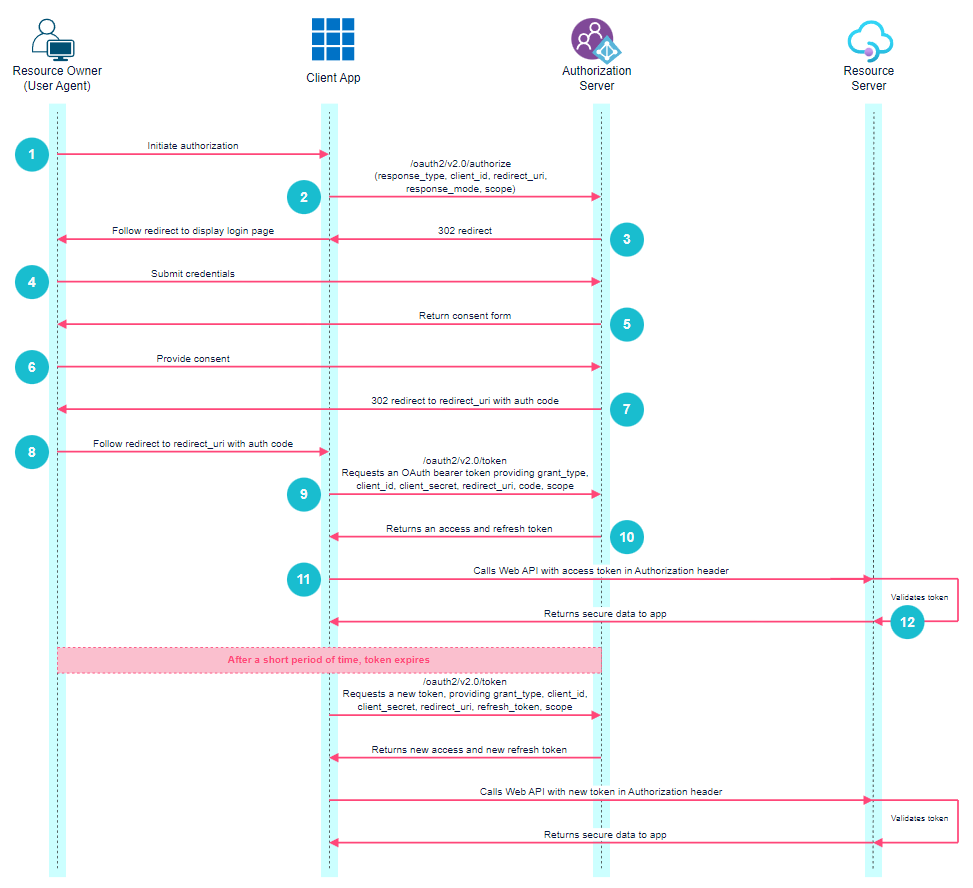
The steps for a partner to gain access to an account using the Authorization Code flow, outlined in detail below, can be summarized as follows:
The developer must first register an OAuth2 client and receive a unique client ID and client secret.
The application opens a browser window and redirects the user to the authorization server. The client ID and scope are supplied as query strings.
The authorization server returns an HTTP 302 response and redirects the user to a login page. The user must fill in their MobilityPlus credentials and submit the form.
A consent form is displayed to the user requesting access to their account on behalf of the application.
Upon approving the access request, the user is redirected to a predefined URL (redirect URI) and an authorization code is supplied in the query string.
The application sends a request to the resource server, supplying the authorization code, redirect URI, client ID, client Secret and scope as form-data (body). The resource server returns an access token and refresh token.
2.1.1 Registering an OAuth Client
To register an OAuth client, please contact your Partner Manager or Sales Representative. You will need to provide one or more Redirect URIs for your client.
Once the OAuth client is created by MobilityPlus, the client ID and client secret, along with the Subscription key will be shared with you.
Note: your subscription key can also be found here in your Profile settings.
2.1.2 Authorization Request
Authorization URL: https://mobilityplusb2c.b2clogin.com/mobilityplusb2c.onmicrosoft.com/B2C_1_signin/oauth2/v2.0/authorize
Scope: https://mobilityplusb2c.onmicrosoft.com/MobilityPlusBackend/Access offline_access
After a successful authorization request is sent (see example), an HTTP 302 response is received. This should open a browser window and redirect the user to a login form where they need to enter their MobilityPlus username and password. If you have more than one redirect URI, you can use a query parameter in the authorization request to specify which URI the user will be redirected to. Ex: https://localhost
Upon successful login, the user will be redirected to the Redirect URI with a temporary code. The temporary code will be valid for 10 minutes and is used in the next step, the token request.
Example Authorization Request
GET https://mobilityplusb2c.b2clogin.com/mobilityplusb2c.onmicrosoft.com/B2C_1_signin/oauth2/v2.0/authorize?response_type=code&client_id=<Client ID>&redirect_uri=<Your Redirect URI here>&response_mode=query&scope=<Scope>
Example Redirect
<Redirect URI>?code=eyJraWQiOiJjcGltY29yZV8wOTI1MjAQ..-ELg6KFPC4faJkjl.ADBbJOpIUPOxvOgW_ujaK3JCJa_mABm[shortened]5A2.1.3 Token Request
Token URL: https://mobilityplusb2c.b2clogin.com/mobilityplusb2c.onmicrosoft.com/B2C_1_signin/oauth2/v2.0/token
Once you have a code, you can then send a request to the /token endpoint with the received code and the OAuth client credentials to retrieve an access token and refresh token.
Access tokens will expire after a period of time. The expires_in field specifies the length of time, in seconds, that the access token will be valid. Once the token has expired, a new access token can be retrieved using the refresh token.
Example Token Request
POST https://mobilityplusb2c.b2clogin.com/mobilityplusb2c.onmicrosoft.com/B2C_1_signin/oauth2/v2.0/tokenContent-Type: application/x-www-form-urlencodedgrant_type=authorization_codeclient_id=<Client ID>client_secret=<Client secret>code=eyJraWQiOiJjcGltY29...scope=<Scope>redirect_uri=<Your Redirect URI here>
The response will contain an access_token that should be used as a Bearer token in subsequent API requests. A lifetime will also be returned in seconds to indicate how long the Bearer token will be valid.
Example Response
{"token_type": "Bearer","access_token": "eyJraWQiO[shortened for readbility]YifQ.CXkfPs[shortened]hQ","refresh_token": "Gd19AqfojTyXqES9sSQQrRzM5GzQuTsX...","expires_in": "3600"}
2.1.4 Making Authenticated Requests
Include the Bearer token in the Authorization header and the Azure API Management Subscription key in the Ocp-Apim-Subscription-Key header when making requests to the API.
Example Request
GET /resourceAuthorization: Bearer ACCESS_TOKENOcp-Apim-Subscription-Key: YOUR_SUBSCRIPTION_KEY
Replace /resource with the specific endpoint your are trying to access, ACCESS_TOKEN with the Bearer token obtained above, and YOUR_SUBSCRIPTION_KEY with the Azure Subscription key. Please note that the Bearer token is indeed preceded by a static keyword "Bearer" and a space.
2.1.5 Refresh Token
Token URL: https://mobilityplusb2c.b2clogin.com/mobilityplusb2c.onmicrosoft.com/B2C_1_signin/oauth2/v2.0/token
Once the access token expires, you will need to use the refresh token to get a new access token. Refresh tokens can only be used once and expire after 30 days. If a refresh token is not exchanged for an access token within 30 days, the API client will need to be reauthorized.
Example Request
POST https://mobilityplusb2c.b2clogin.com/mobilityplusb2c.onmicrosoft.com/B2C_1_signin/oauth2/v2.0/tokenContent-Type: application/x-www-form-urlencodedgrant_type=refresh_tokenclient_id=<Client ID>client_secret=<Client secret>refresh_token=eyD4aWQiOiJjcGltY29yZ...scope=<Scope>redirect_uri=<Your Redirect URI here>
Example Response
{"token_type": "Bearer","access_token": "eySO57g7QO[shortened for readbility]U4GA.GHdifR[shortened]fO","refresh_token": "9sSQQrRzMjTyXqES9sSGltGltY29yZV...","expires_in": "3600"}
2.2 Client Credentials Flow
MobilityPlus also supports the OAuth2 Client Credentials flow for server-to-server integrations. This flow is designed for backend applications that need to access the API fully automatically, without any user interaction or browser involvement.
Use this flow when your application needs to call the MobilityPlus API as a background service or daemon, without a human user logging in.
The steps for a partner to gain access to an account using the Client Credentials flow can be summarized as follows:
MobilityPlus registers a dedicated client application for the partner and provides a unique client ID and client secret.
The partner's application sends a request directly to the token endpoint, supplying the client ID, client secret, and scope as form-data (body). No browser or user interaction is involved.
The token endpoint returns an access token. There is no refresh token in this flow — when the access token expires, the application simply repeats the same request to obtain a new one.
When to use this flow
Your application runs as a background service or scheduled job
No human user interaction is possible or desired
You need a fully automated, unattended integration
Note: To use this flow, your application must be registered by MobilityPlus. Contact your Partner Manager or Sales Representative to get set up. Your client_id and client_secret will be provided to you.
2.2.1 Token Request
Token URL: https://login.microsoftonline.com/1bd79316-d524-4063-9908-c2a4bd746ebc/oauth2/v2.0/token
Example Token Request
POST https://login.microsoftonline.com/1bd79316-d524-4063-9908-c2a4bd746ebc/oauth2/v2.0/tokenContent-Type: application/x-www-form-urlencodedgrant_type=client_credentials
client_id=<Client ID>client_secret=<Client secret>scope=https://mobilityplusb2c.onmicrosoft.com/MobilityPlusBackend-CC/.default
Example Response
{"token_type": "Bearer","access_token": "eySO57g7QO[shortened for readbility]U4GA.GHdifR[shortened]fO","refresh_token": "9sSQQrRzMjTyXqES9sSGltGltY29yZV...","expires_in": "3600"}
Access tokens will expire after 1 hour. There is no refresh token in this flow — simply repeat the token request above to obtain a new access token when the current one expires. This can be fully automated in your application.
2.2.2 Making Authenticated Requests
Include the Bearer token in the Authorization header and the Azure API Management Subscription key in the Ocp-Apim-Subscription-Key header when making requests to our APIs. You must also include the x-entity-id header to specify which customer's data you are requesting access to.
Example Request
GET https://api.mobilityplus.be/api/admin/v1/locations
    Authorization: Bearer <ACCESS_TOKEN>
    Ocp-Apim-Subscription-Key: <YOUR_SUBSCRIPTION_KEY>
    x-entity-id: <YOUR_ENTITY_ID>
Replace <ACCESS_TOKEN> with the Bearer token obtained above, <YOUR_SUBSCRIPTION_KEY> with your Azure Subscription key, and <YOUR_ENTITY_ID> with the entity ID of the customer whose data you are requesting.